Tuesday, January 25, 2011

Firefox still holding its own, for me

I have heard a lot of stuff online bad mouthing the Firefox web browser, especially in relation to the Google Chromium browser.  Most notably, I have heard people state that Firefox has a memory leak (which people should really state as "uses too much memory,"  I hold to a fairly traditional definition of "memory leak"), and has a slow Javascript engine.  There definitely appears to be some validity regarding these complaints, even if the wording is slightly off.  Firefox does utilize a lot of memory and it appears to rate lower in benchmarks and Javascript video games than Chromium.

A new complaint I have heard from my office mate recently is that Firefox uses more CPU than necessary for windows or, more appropriately tabs, that are not currently displayed.  He suggested I should consider trying Chromium since I am often annoyed at how much background CPU I find Firefox occupying.  As stated in previous posts, I am very sensitive to CPU usage in a very literal sense.  The skin on my hands and lap are very sensitive to the rise in temperature due to stray computation on my aluminum bottomed, first generation, MacBook Pro.  I have gone so far as to make a script that toggles freezing any Firefox and Adobe Flash processes on my system so I can force Firefox to stop doing anything when I don't need it.  Anyway, I decided to give Chromium a try as an alternative with hopes that it would use less background CPU.

Now, I'm not sure I'm the average user, but I think that there are many out there that have a lazy, clutter filled mind such as mine.  Let me describe my typical habits when using Firefox.  I tend to let projects build up, and tabs in my browser have only facilitated this behavior.  At any given time, I usually have more than 30 tabs open.  Right now I have around 36, I have seen upwards of 45, but Firefox's background CPU usage usually persuades me to move tabs to bookmarks and or drop something I find interesting because I don't have the time.  Each tab takes up a little CPU, especially if the pages periodically check in with the server.  It seems my friend was wrong though.  Firefox handles my use case much more elegantly than Chromium.

A snapshot of top when Firefox and Chromium are both open with the same set of tabs.  Note that %CPU is double what it is below as top measures percent per core.  Both programs are not doing anything, although Firefox may have been coming in and out of focus during this test (Chromium is on another workspace).

Looking at the process and how much they are loading the system, we see that Firefox weighs in pretty heavy:

smithzv@ciabatta:~$ ps -ausmithzv -eo pcpu,size,pmem,comm | grep firefox
 0.0   304  0.0 firefox
 7.6 484264 16.5 firefox-bin
smithzv@ciabatta:~$ ps -ausmithzv -eo pcpu,size,pmem,comm | grep plugin
 1.2 92000  1.7 plugin-containe

The Firefox program acts as a monolithic blob except for the Flash plugin which is kept in a separate process.  It can be quite shocking how much load it's placing on the system; around 8.8 percent CPU and 18.2 percent of the RAM.  Chromium, on the other hand, is split among many different sub processes.  Let's take a look there:

smithzv@ciabatta:~$ ps -ausmithzv -eo pcpu,size,pmem,comm | grep chromium
 2.1 157892  3.2 chromium-browse
 0.2  2316  0.3 chromium-browse
 0.0 10908  0.5 chromium-browse
 3.9 90556  2.6 chromium-browse
 4.9 85524  2.1 chromium-browse
 0.1 10520  0.6 chromium-browse
 0.1 63736  1.9 chromium-browse
 0.0 16000  0.8 chromium-browse
 3.4 58412  1.4 chromium-browse
 0.0 53500  1.2 chromium-browse
 0.1 62696  1.7 chromium-browse
 0.0 54680  1.2 chromium-browse
 0.1 60872  1.5 chromium-browse
 1.5 82252  2.3 chromium-browse
 0.6 89188  2.4 chromium-browse
 0.0 55596  1.3 chromium-browse
 0.0 56424  1.3 chromium-browse
 0.0 17840  0.8 chromium-browse
 0.0 51752  1.1 chromium-browse
 0.1 59376  1.5 chromium-browse
 1.9 61228  1.6 chromium-browse
 0.0 56260  1.3 chromium-browse
 0.1 56552  1.3 chromium-browse
 0.3 57656  1.4 chromium-browse
 0.0 16000  0.7 chromium-browse
 0.0 56824  1.3 chromium-browse
 0.0 10600  0.6 chromium-browse

We see that the Chromium processes add up to 19.4 percent CPU, over twice what Firefox is using and 37.9 percent of the RAM, again around twice that of Firefox.  I'm not sure anything can be understood from the memory usage, but the CPU usage is pretty cut and dry.  That said, I did notice when playing with Chromium, that tabs don't scroll like they do in Firefox, but rather squish together.  At around the 30 tab mark, all you can see is the icons for each tab, soon after that any identifying characteristic disappears completely.  So I don't think I would ever keep so many tabs remain open since I wouldn't be able to read the title of the tabs I am working with.

Monday, January 3, 2011

Dropped laptop and file system errors

So, dropped my laptop computer yesterday. It was about a 3 foot drop. As much as I hate my magnetically attached power cable popping out every ten minutes, I really wish they had things like this for USB cables right now. I'll give Apple a tip of the hat, though.  The metal case dents very well, but was still running when I opened it up.  Besides a nice new dent on the corner, it landed on the plugged in USB cable which, while it probably broke the fall, it also provided leverage to tweak the edge of the case. The USB port seems to no longer function though it still holds a voltage. Considering it was rotated about 10-15 degrees off the plane of the mainboard, it is very possible that it was pulled out of the circuit. Time will tell if the firewire or ethernet connections are still intact. Below are some pictures of the damage.

USB, Firewire, Ethernet, DVI, in that order.  Yes I'm watching 24 on Netflix right now.

With thumb drive inserted as an illustration of the damage to the USB port.

The picture doesn't quite convey how ridiculously bent-up this looks.

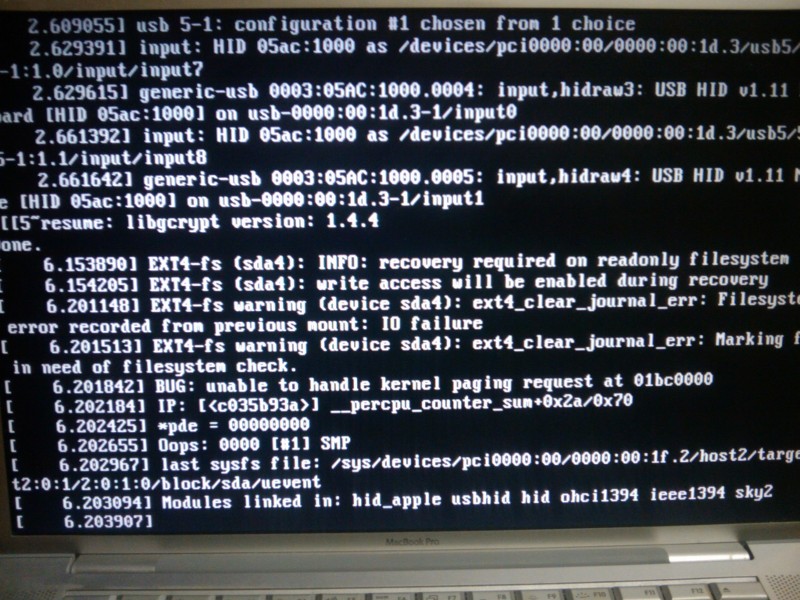
Anyway, after the drop and subsequent freak out, I closed the laptop and left it alone until yesterday evening. When I started using it again, I slowly realized that the root filesystem was mounted read only. This happens when Ubuntu detects an error in the file system.  Now, I cannot say that this has anything to do with the drop, especially considering my root file system has mysteriously been remounted read only in the past. However, in the past, I typically restart the system, it does a fsck on the un-clean partitions, and repairs any errors. I tried this and, boom, stopped up in GRUB.
From above: BUG: unable to handle kernel paging request at 01bc0000.  After this, GRUB can't mount a bunch of stuff and craps out to the (initramfs) prompt.

Around 18 months ago I set up a pretty good backup system so that I never have to worry about it. It performs autonomous, daily, incremental backups of my important stuff (see rdiff-backup). This mean I don't have to worry about a long recovery or data lost if the disk is really pooched, what a relief. Let's not get ahead of ourselves, though, let's see if it is recoverable.

The OS X partition still boots, but you can't repair (or even read) ext4 from OS X. Okay, no biggie, I'll just boot off a live CD and repair the partition there. Uh-oh, on vacation and didn't bring any live CDs. Okay, download Maverick and burn a new one. Let's boot it up. Shoot, forgot, the CD drive in my MBPro has always been finicky on reading CD's that it didn't write (to the point that I bet it is worthless for most CD-R's); it sees it as a blank CD. Try again writing from the OS X parition of the MBPro, Uh-oh, that failed, couldn't write the CD. Use the wifes laptop to write one; sees that one as blank too. Now I have one coaster and two Maverick CD's but no way to boot from them.

Then I realized that I have a thumb drive and booting from it is just about my only chance to recover the computer. I install the Maverick image onto the thumb drive (which I had to do from Windows as the Mac directions didn't work). Then I booted Maverick. A note here, I had to alter some kernel options (remove prevalence or whatever from the options) to make sure that it didn't try to mess with the screwy partitions as that hung the boot. Then I tried to run fsck on the partition, but it says the device is busy. That's weird as it isn't even mounted. A little Googling and I find that some people see similar behavior when using raid (not sure why this would effect me). I found someone else that hit it in a situation like mine and was able to work around it using a different distribution, SLAX. So back to the Windows computer, download SLAX, write it to the thumb drive. Boot up, fsck, and it's fixed. Phew.

Another day in the life of a GNU/Linux user.  Moral of the story, always carry bootable media if you hold your computer together with shoelaces and bubblegum like I do.

Update (01/14): The file system errors continued, sometimes as frequently as having to repair it each day.  I figured this must be detrimental to my data even though I haven't noticed any problems yet.  I decided to instead backup my entire home space, blow away everything and reinstall (and upgrade while I'm at it, now at 10.10).  Things have been working since... fingers crossed.  I guess the worst case scenario is that I am forced to purchase a new computer, maybe one that can last longer than an hour and a half unplugged.

Update (01/31): Still having issues.  Twice my drive was remounted RO while I was using it (and not doing anything really odd).  The first time I brought it up in SLAX and fixed the file system errors.  I wonder if the fact that fsck does does anything means, definitively, that I have lost some data, somewhere.  The backups showed no difference, but I don't back up every file.  I also did a non-destructive, read-write surface scan on the entire 72 GiB partition (for me that took about 4.5 hours).  It showed no bad blocks.  A few days later (yesterday) I found my computer had remounted RO the root file system again.  This time I backed up my entire home directory and deleted the partition, then repartitioned and reinstalled Ubuntu with three differences.  I made sure to have parted align the partitions to the cylinder instead of the MiB (align to MiB is the default).  Shouldn't matter but it also got rid of the annoying tiny blocks of free space between my partitions.  I also included a small 100 MiB partition that I can mount and save stuff to if the root file system is remounted RO.  Lastly, I used Ext3 partitions for everything this time instead of the default Ext4 file system.  Not sure if it will matter though I hear Ext4 is more performant; I can always upgrade later.  Anyway, fingers crossed again.

Where does Gnome mount network drives?

In the same light as my last post, here is another place that has tripped me and others up recently. When you "Connect to Server" in Ubuntu, and presumably in Gnome in general, the drive doesn't appear in /media. In fact, at least for my colleague and myself, it seemed hard to find where the drive was being mounted. A call to mount revealed nothing (at first glance). So what's going on here?

There is an entry in the mount output (or, if you rather, in /etc/mtab) that sheds light on this. There is a FUSE mount on $HOME/.gvfs. A bit of pondering and you'll realize that gvfs probably stands for Gnome Virtual FS or something like that. Indeed if you look under ~/.gvfs you will see directories containing your network mounts.

Friday, December 31, 2010

Unselectable stuff in Inkscape

I'm putting this here just in case it happens to someone else and they are freaking out. If you are editing an SVG file in Inkscape and something won't select if clicked on, it seems like it is locked, uneditable, read only, unmodifiable, or immutable (all search terms I was trying): then it might be that some of your image is in separate, locked layers. Layers can be locked, making elements unchangeable until you unlock the layer in the layers dialog.

Hope this helps.

Friday, December 10, 2010

Problems with cooling the MacBook Pro (1,2)


I have a first generation MacBook Pro which, after living in shame with OS X for several years, I finally bit the bullet and installed Ubuntu on it. And it was certainly biting a bullet; Apple computers are some of the least supported computers on the market when it comes to Ubuntu and the Linux kernel in general. I imagine this is strongly linked with the closed nature of their design. Despite this, the gains I have seen in capability of the machine far outweigh the annoyances of the setup, the reduced battery life, and when using 9.04, the many graphics errors that made compiz and anything with OpenGL unusable (the new ATI drivers are much better, at least for me).

One of the most annoying problems, however, is that (at least) the first generation MacBook Pros run very hot with Ubuntu. Largely this seems to be due to a bug in the fan speed control. It does increase the fan speed with temperature, but it seems that the temperature of the CPU needs to reach upwards of 100 degrees C before you will notice the fans kicking in. At 100 degrees C the outside case (aluminum and often in contact with your skin) may reach an uncomfortable temperature. I suspect that this might be the result of the fan control module reading its temperature data from the wrong sensor, i.e. scaling the fan based on the case temperature instead of the CPU, but let's ignore the root of the problem and consider how to fix it.

Several people have come up with methods of controlling the temperature, like this. I wrote my own because I thought this was too complicated, but mine has grown in complexity with time. I just have this running in the background as root.

#!/bin/bash

let 'speed=1000'

while true
do
    temp=`cat /sys/devices/platform/applesmc.768/temp3_input`
    let 'new_speed=(1000 + (5000*((temp-35000)/(100*(60-30))))/10)'
    if [ $new_speed -lt $speed ]
    then
        # Go down in speed quickly
        let 'speed=new_speed'
    fi
    # Average to provide some damping
    let 'speed=(speed+new_speed)/2'
    if [ $speed -gt 6000 ]; then speed=6000; fi
    if [ $speed -lt 1000 ]; then speed=1000; fi
    echo $speed > /sys/devices/platform/applesmc.768/fan1_min
    echo $speed > /sys/devices/platform/applesmc.768/fan2_min
    sleep 2
done 

But even this wasn't enough to keep the temperature under control. I have read in many places that the maximum fan speed for the MacBook Pro (1,2) is 6000 RPM (although it seems to go up to 7000 RPM). Even when the fan speed is pegged at 6000 RPM, one process at 100% CPU will raise the temperature up to 100 degrees C (already too hot for laptop work), and anything running on the other core will often times raise the temperature enough to cause the system to shutdown from overheating. This is a big problem: it seems that the fans on the MacBook Pro (1,2) are not able to cool the CPU appropriately at maximum load.

Today I finally found a way to keep the temperature under control: by changing the CPU scaling behavior to powersave mode. This basically locks each core to its minimal clock frequency, or 1 GHz for me. Interestingly, this doesn't seem to extend my battery life at all. What it does do is hold the CPU temperature at below 60 degrees C when the above script is despite the system load. Of course, CPU bound programs run at half the speed.

Never mind the matter of why Ubuntu's built in thermal throttling isn't kicking in, setting the powersave governor will allow us to script our own thermal throttling. I plan, in the near future, to hack together a solution using cpufreq-selector that will switch the CPU scaling governor when the system gets too hot or if the system is running on battery power (as stated earlier, this isn't for extended battery life. It's just that when I am on battery power it is more likely that the computer is sitting on my lap or I'm in a meeting and a noisy fan would bother others). This sort of thing makes me wonder if Apple used thermal throttling when they configured OS X for the first gen MBPros. The computer certainly ran hot in OS X, but it never crashed due to overheating. The current CPU frequency was not readily apparent from with OS X (or at least I didn't see it). I wonder if all those times I was running at maximum CPU, I was actually running at 1 GHz or 1.33 GHz so that the system wouldn't shutdown. Makes me pretty happy that my place of work went with my suggestion to buy the lowest clock speed computer. I could probably test this by booting into OS X and running a benchmark and comparing to the result under Ubuntu.

I did a little research and it seems that the Core2 Duos dropped support for ACPI Thermal Zone, which is responsible for thermal throttling. The first gen MBP has a Core Duo, so maybe it is similar. Turns out you can switch between thermal throttling CPU states by writing the desired state (say T1) to /proc/acpi/processor/CPU0/throttling. Even at the most limiting throttle states, the CPU still runs hotter than running with the powersave governor at T0. That doesn't make a lot of sense.

Friday, October 29, 2010

LGDC Accounce


I have wanted to participate in the Lisp Game Dev Competitions for a while now, but it always seemed that work made it an impossibility. Things are no different this time around, in fact I am probably busier, but I figure that if I want it to happen I am just going to have to make the time.  Without further ado, I announce my entry into the October LGDC.

1 Asteroid Jumper

Due to the proximity of Halloween, it seems like a good idea to make a Halloween inspired game, a real fright fest.  I, however, have not followed that route at all.  My idea for a game involves hoping from asteroid to asteroid either battling or racing opponents.  This is an action game where the arena of play is constantly in flux; asteroids shift, collide, and break apart due to the actions of the players.

  This will be a 2D game where the basic gameplay will be running around the perimeter of asteroids and jumping from asteroid to asteroid.  I don't want this to be a shooter, per se.  I want something that mixes together the feel of Asteroids, Worms, an overhead view game, and a side scroller.

1.1 Weapons, etc

The items or weapons that will be available is really unclear at this time.  In my imagination, I think a few things that might be fun to have: grappling hooks, jet packs, shields, explosives, guns, and bouncing projectiles.

1.2 The Asteroids

The asteroids will have real physics.  They will have momentum (linear and rotational).  When they collide they will transfer that momentum between each other.

  I might want to include fault lines in the asteroids.  These cracks will define how the asteroid will prefer to fracture.

1.3 Technical Stuff

Okay, here's the plan: Since I am very familiar and fond of Common Lisp, I will be using it.  I always aim for cross implementation code, but for the time I will be developing for SBCL.  I am going to use CL-OpenGL for the graphics and the Squirl implementation of Chipmunk for physics and collision detection.  In my experience, CL-OpenGL works most places and Squirl works with SBCL and CLisp, but has issues elsewhere.  This is the route of least resistance as it will involve modifying the demos contained in the Squirl package.

  I am still unsure how to get sound effects and/or music into my Lisp programs other than spawning a shell process to play an audio file.  I hope to look into OpenAL for sound as it should be cross platform.

  A goal is to have this be multi-player, particularly over TCP, but time is short and I have never done this, so I'm not sure I will be able to accomplish this.  If I do attempt this I would try to use ZeroMQ, which seems to make this easy to do.

  If you are asking yourself, why not use Lispbuilder, well I have always had trouble getting it up and running.

Sunday, October 3, 2010

scp and symlinks


Many would be surprised to hear that several common GNU/Linux programs don't handle symlinks properly.  By that, of course I mean that they don't handle them the way I would want them to, but close enough.  For instance, if you want to copy a directory from one server to another, the command scp -r source-dir target-dir looks very attractive. Unfortunately scp follows symlinks, meaning instead of copying a link to some other part of the file system, it instead copies that other part of the file system.  For a heavily symlinked directory this can be disastrous.

The correct and fool proof way to grab a portion of a file system from a server is to use tar.  Don't worry, this doesn't mean you have to actually create a tar file, you can use tar to pipe the output over ssh and untar it on the other side.

tar -c some-files some-dirs \
  | ssh -C my-server "tar -C path/to/extract/root -x"

If you want to download from a server…

ssh -C my-server \
  "tar -C path/to/archive/root -c some-files some-dirs" | tar -x

The -C switch to tar tells it to change directories prior to performing the operation.  The -C switch to ssh tells it to compress the traffic with gzip like compression.  You can even use a better compression if you have a slower connection to the server or a pay by the bit plan, by including lzma or p7zip in the pipe, or just passing a -j switch to both tar commands.  By the way, p7zip also treats symlinks badly and you need to protect any hierarchy with a tar archive.

In case you are wondering why scp defaults to bad behavior, well all file systems aren't created equal.  Since you are copying to a server and who knows what file system they have (for instance, it could be FAT), you might not be able to create symlinks there.  So it is an alright decision to only copy files and not links to files.  If you only deal with, hmmm, how to put it, modern file systems, this sure seems like incorrect behavior.  Maybe someday this will change, but in the mean time, the tar method works great and has been the method of choice since tar, pipes, and networks existed.

But wait, there's more.  Even if you don't have symlinks, piping a tar archive over ssh might be a good idea.  Since scp operates on individual files, it incurs an overhead on each one.  If you have many small files you want to transfer, small enough that the actual transfer time is almost insignificant, this overhead can become quite costly.  In these cases the tar method will be faster.

smithzv@ciabatta:~$ ssh scandal "ls -R kappa-slices-3d | wc"
   3993    3958  117715

smithzv@ciabatta:~$ ssh scandal "du -sh kappa-slices-3d"
36M     kappa-slices-3d

smithzv@ciabatta:~$ time scp -qr scandal:./kappa-slices-3d dat/

real    0m8.004s
user    0m1.152s
sys     0m1.184s

smithzv@ciabatta:~$ time ssh scandal "tar -c kappa-slices-3d" \
                      | tar -x -C ~/dat/

real    0m2.442s
user    0m0.824s
sys     0m0.728s

This directory on our scandal cluster has 4000 small files in it which total up to 36 MB.  Performing the piped tar method takes about a third the time of the recursive scp copy.  Also, I should point out that the scp process will, as far as I know, at best be as fast as the taring procedure.  Of course, note that we didn't use compression here as this is a transfer of already compressed files over a fast connection and compression just slows both commands down.  If you ever need to backup your computer over a your home LAN so you can reinstall an OS or something, this is a lifesaver (or at least a time saver).

So, piping a tar archive over ssh is a great tool.  That being said, there is a program that does so much more and might be a better choice as long as it is installed on both systems; it's called rsync. rsync follows symlinks just like scp by default (for the same reasons), but it has a switch, -a for archive mode, that allows it to perform the symlink preserving behavior as seen above.  rsync has other benefits over just an ssh or scp copy (like incremental updates: i.e. only transmitting data that has changed) and really should be preferred in most cases if it is an option, but you have to read the man page first or it will bite you, especially if you have heavily internalized the way cp and scp work.